Knjige ► Učenje jezika ► Engleski
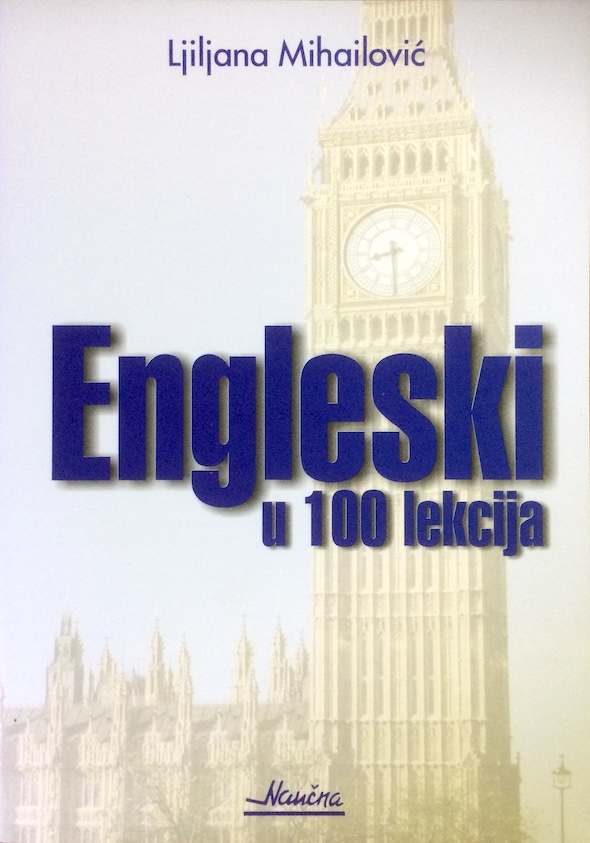
Engleski u 100 lekcija, 6. izdanje
Engleski u 100 lekcija sa ključem za prevode i rešenjem zadataka, 6. izdanje.
Knjiga iz koje su generacije učile.
Najjednostavniji način da se savlada engleski jezik. Obuhvata lekcije sa zadacima, prevode i rešenja zadataka.
SADRŽAJ
I Engleski u 100 lekcija, 5
II Ključ za prevode i rešenja zadataka (zadatih na kraju svake lekcije), 309
Knjiga iz koje su generacije učile.
Najjednostavniji način da se savlada engleski jezik. Obuhvata lekcije sa zadacima, prevode i rešenja zadataka.
SADRŽAJ
I Engleski u 100 lekcija, 5
II Ključ za prevode i rešenja zadataka (zadatih na kraju svake lekcije), 309
Detaljni podaci o knjizi
Naslov: Engleski u 100 lekcija, 6. izdanje
Izdavač: Naučna KMD
Strana: 350 (cb)
Povez: meki
Pismo: latinica
Format: 20 cm
Godina izdanja: 2019
ISBN: 978-86-84153-79-3

 Budite prvi koji će svoje mišljenje podeliti sa drugima (